 Camera Sudoku
How to scan a Sudoku with your phone camera
To scan a Sudoku with your phone, open Camera Sudoku, tap Capture, point the camera at the 9×9 grid until the frame turns green, and take the picture. The app finds the grid, reads the digits on your phone, and shows them in Edit mode so you can check them before you play. It works for newspaper puzzles, puzzle books and grids you have already started by hand.
What you need
- An Android phone with a camera (Android 7.0 or newer).
- A printed Sudoku: newspaper, magazine, puzzle book or a printout.
- Reasonable light. Even, diffuse light is better than a single lamp at an angle.
Step by step
- Open the camera. On the home screen, tap Capture. Allow camera access the first time.
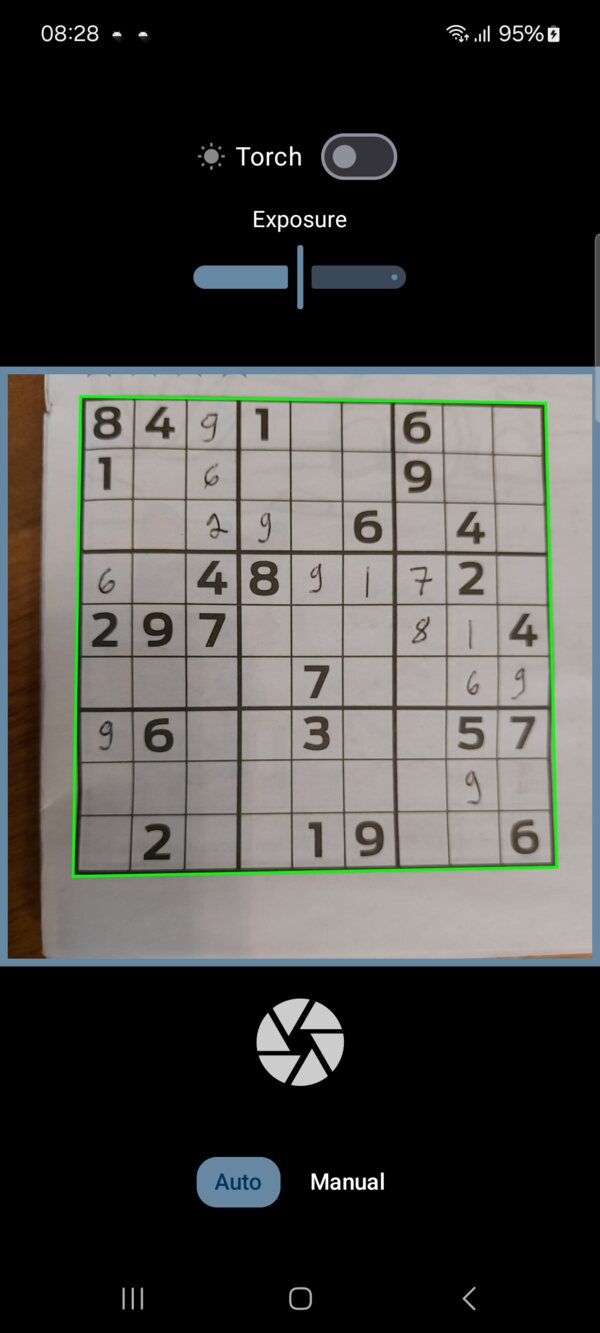
- Frame the whole grid. Hold the phone flat above the page so all four corners of the grid are in view. Fill as much of the frame as you can without cutting off an edge.
- Wait for green. The framing rectangle turns from red to green when the grid is aligned. Tap the shutter then.
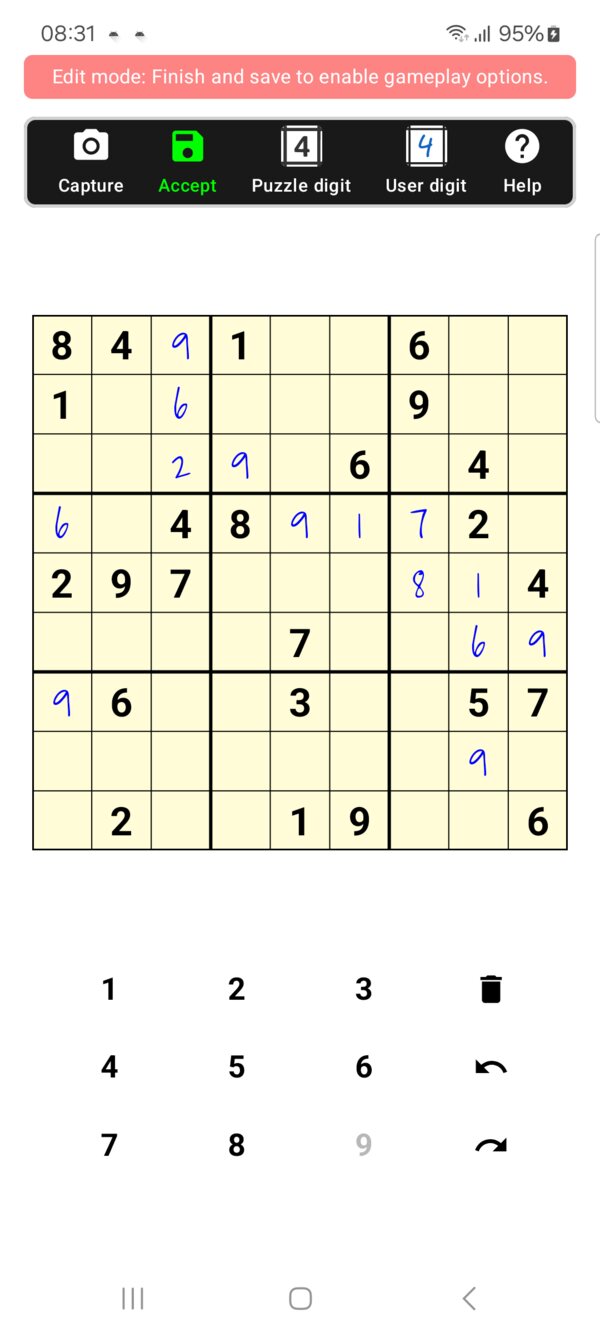
- Check the digits. The puzzle opens in Edit mode. Use the keypad to fix any digit the camera misread. The Puzzle digit and User digit buttons set whether a digit belongs to the original puzzle or was written in by you.
- Save and play. Tap Accept and give the puzzle a name. Only puzzles with a single valid solution can be saved. It lands in My Puzzles, and you can rename, reset or delete it later.
Tips for a clean scan
- Flatten the page. A curled book page bends the grid lines. Press it flat or scan the inner page with the spine held down.
- Avoid glare and shadows. Glossy magazine paper reflects lamps, so tilt the page slightly. Your own hand or phone can cast a shadow across one corner.
- Adjust the light. In a dim room, switch on Torch at the top of the camera screen. If the page looks washed out or too dark, drag the Exposure slider.
- Hold steady. Rest your elbows on the table for a second while you capture.
Handwritten and half-finished puzzles
If you already started the puzzle in pen or pencil, scan it anyway. Camera Sudoku reads handwritten digits as well as printed ones and shows them in a different style, so you can continue where you left off. Messy handwriting is misread more often than print, so take an extra look in Edit mode. With Pro, the app can also auto-correct handwritten entries that conflict with the rules.
When the grid isn't detected
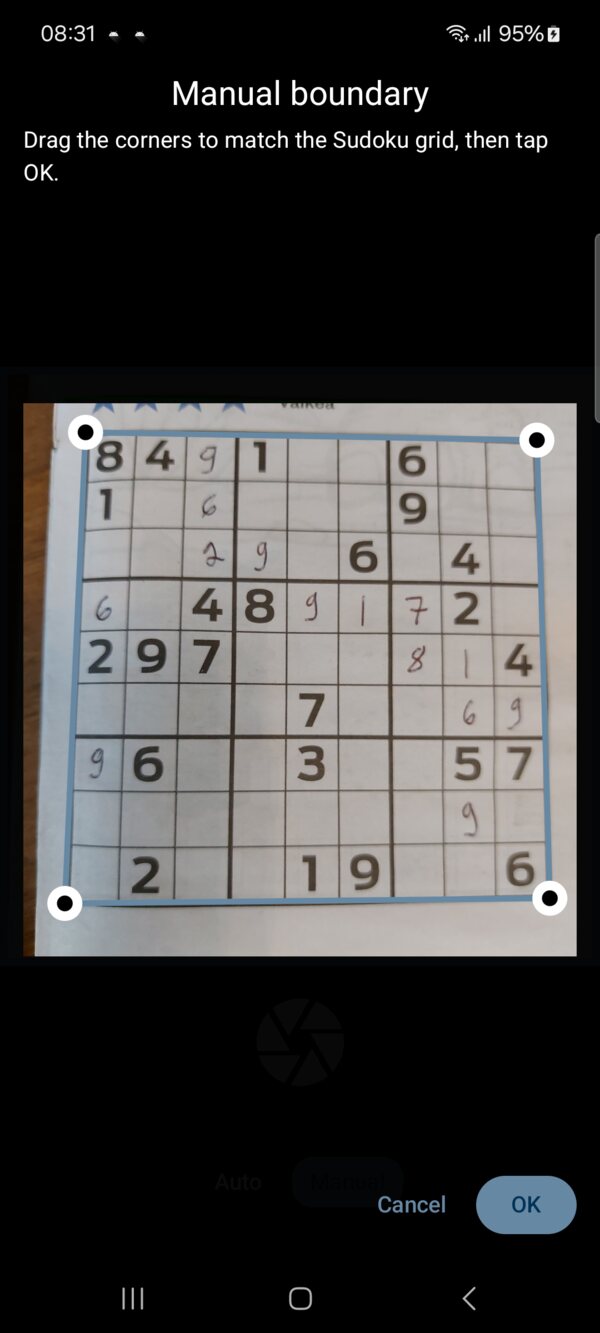
Most failed scans come from a cut-off corner, strong glare, or a grid that fills too little of the picture. Fix those first. If the grid still isn't found, switch the camera screen from Auto to Manual: take the photo, drag the four corners onto the grid's corners and tap OK. The rest works the same.
If a particular puzzle keeps failing, the Report bug button on the Info screen can attach that photo to an email draft for us. Nothing is sent unless you press send in your email app.
Is my photo uploaded?
No. Grid detection and digit recognition run entirely on your phone, and a normal scan keeps only the digits, not the photo. See the privacy policy for details.
After the scan
Your puzzle is ready to play. When you get stuck, Smart Hint explains the next logical step on the grid. The strategies guide walks through the techniques it teaches, and the Naked Pair guide follows one hint from start to finish on the puzzle scanned above.
Frequently asked questions
Does the photo get uploaded?
No. Camera Sudoku detects the grid and reads the digits on your phone, and normal scans keep only the digits.
Can it read a grid I already started in pen?
Yes. Handwritten digits are recognised too and shown differently from the printed ones, so you can continue where you left off.
The grid isn't detected. What now?
Improve the lighting, flatten the page and fill more of the frame. If it still fails, use manual mode and drag the corners onto the grid.
Ready to try it?
Camera Sudoku is free to install. Scan your first puzzle in seconds.